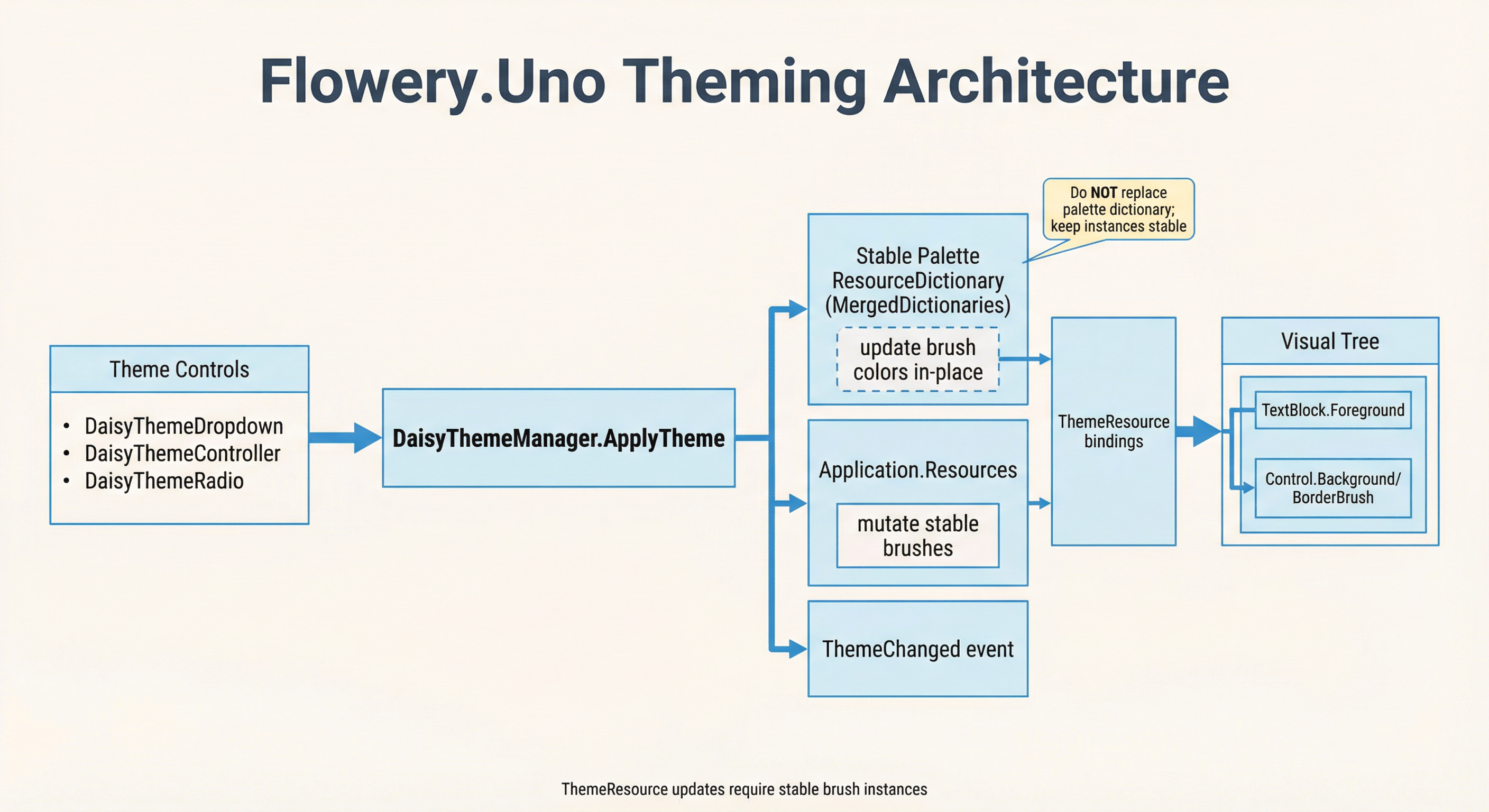
DaisyThemeManager is the central theme loader/applicator for the 35+ built-in DaisyUI themes. It tracks available themes, applies palette ResourceDictionaries, and notifies listeners via ThemeChanged. Helpers expose current/alternate theme names and light/dark metadata.
| Scenario | Recommended API |
|---|---|
| Switch between built-in themes (Light, Dark, Dracula, etc.) | DaisyThemeManager.ApplyTheme() ✓ |
| Industry-specific product themes (96 palettes) | DaisyProductThemeDropdown or ProductPalettes ✓ |
| Custom theme application strategy (in-place updates, persistence) | Set DaisyThemeManager.CustomThemeApplicator |
| Load custom themes from CSS at runtime | DaisyThemeLoader.ApplyThemeToApplication() |
In addition to the 35+ DaisyUI themes, Flowery.Uno includes 96 industry-specific product palettes from the UI UX Pro Max Skill project. These are professionally crafted color schemes for specific industries:
| Industry | Example Themes |
|---|---|
| SaaS / Enterprise | SaaS, Enterprise, StartupFresh |
| Fintech / Crypto | FintechTrust, FintechModern, CryptoNeon |
| Healthcare | HealthCalm, HealthPro, MedicalClean |
| E-commerce | EcommModern, EcommLuxury, EcommMinimal |
| EdTech | EduBright, EduPro, LearningFun |
| And 7+ more... | Travel, Food, Real Estate, Fitness, Gaming, Social, Productivity |
Use the DaisyProductThemeDropdown control for easy theme selection, or access programmatically via ProductPalettes:
// Get all product theme names
var allProductThemes = ProductPalettes.GetAllNames();

// Apply a product theme
var palette = ProductPalettes.Get("FintechTrust");
DaisyThemeManager.RegisterTheme(
    new DaisyThemeInfo("FintechTrust", FloweryColorHelpers.IsDark(palette.Base100)),
    () => DaisyPaletteFactory.Create(palette));
DaisyThemeManager.ApplyTheme("FintechTrust");
See DaisyProductThemeDropdown for full documentation.
Key difference:DaisyThemeManager.ApplyTheme() adds palette resources to MergedDictionaries. Best for switching between the 35 built-in themes.DaisyThemeLoader.ApplyThemeToApplication() updates resources in-place within ThemeDictionaries. Use this for custom themes loaded from CSS files at runtime.using Flowery.Controls;
using Flowery.Theming;
// Built-in themes: use DaisyThemeManager
DaisyThemeManager.ApplyTheme("Synthwave");
// Custom CSS themes: use DaisyThemeLoader
var theme = DaisyUiCssParser.ParseFile("mytheme.css");
DaisyThemeLoader.ApplyThemeToApplication(theme);App.xaml must include Flowery.Uno's Generic.xaml in Application.Resources.MergedDictionaries:
<Application.Resources>
    <ResourceDictionary>
        <ResourceDictionary.MergedDictionaries>
            <ResourceDictionary Source="ms-appx:///Flowery.Uno/Themes/Generic.xaml" />
        </ResourceDictionary.MergedDictionaries>
    </ResourceDictionary>
</Application.Resources>| Member | Description |
|---|---|
AvailableThemes |
Read-only list of DaisyThemeInfo (Name, IsDark) for all bundled themes. |
ApplyTheme(string name) |
Creates a palette via DaisyPaletteFactory, applies it in-place to the stable palette dictionary, and raises ThemeChanged. Uses CustomThemeApplicator if set. |
SuppressThemeApplication |
When true, ApplyTheme only updates internal state without actually applying. Use during initialization. |
CustomThemeApplicator |
Optional Func delegate. When set, called instead of the default MergedDictionaries approach. |
SetCurrentTheme(string name) |
Updates internal state and fires ThemeChanged. Used by custom applicators after applying a theme. |
CurrentThemeName |
Name of the currently applied theme. |
BaseThemeName |
Default/unchecked theme name (default "Light"). |
AlternateThemeName |
Current theme if not the base; otherwise "Dark". |
ThemeChanged |
Event fired with the new theme name after successful application. |
IsDarkTheme(string name) |
Returns whether the theme is marked as dark. |
DaisyPaletteFactory (code-based); ensure the theme name matches AvailableThemes.ResourceDictionary stable and update its brushes in-place. Removing/replacing the dictionary breaks ThemeResource bindings because controls keep references to the old brush instances.// Apply Synthwave
DaisyThemeManager.ApplyTheme("Synthwave");
// Toggle between base/alternate themes
var target = DaisyThemeManager.CurrentThemeName == DaisyThemeManager.BaseThemeName
? DaisyThemeManager.AlternateThemeName
: DaisyThemeManager.BaseThemeName;
DaisyThemeManager.ApplyTheme(target);Theme controls like DaisyThemeDropdown, DaisyThemeController, and DaisyThemeRadio automatically sync to CurrentThemeName during construction. However, in complex scenarios with many controls or custom initialization order, you can use SuppressThemeApplication for explicit control:
// In App.xaml.cs OnLaunched:
var savedTheme = LoadThemeFromSettings() ?? "Dark";

// Option 1: Simple apps - just apply the theme first
// Theme controls will sync to it automatically
DaisyThemeManager.ApplyTheme(savedTheme);

// Option 2: Complex apps - suppress during UI construction
DaisyThemeManager.SuppressThemeApplication = true;
DaisyThemeManager.ApplyTheme(savedTheme); // Only updates internal state

// Create window...
// ...

// After initialization - now actually apply
DaisyThemeManager.SuppressThemeApplication = false;
DaisyThemeManager.ApplyTheme(savedTheme); // Actually applies> Full Migration Example - Step-by-step guide for integrating Flowery.Uno into existing apps with custom resources.
For apps that need custom theme application logic (e.g., in-place ThemeDictionary updates, persisting settings), set the CustomThemeApplicator delegate at startup:
// In App.xaml.cs OnLaunched:
DaisyThemeManager.CustomThemeApplicator = themeName =>
{
    var themeInfo = DaisyThemeManager.GetThemeInfo(themeName);
    if (themeInfo == null) return false;

    // Get the palette from DaisyPaletteFactory
    var palette = DaisyPaletteFactory.Create(themeInfo.Name);

    var app = Application.Current;
    if (app == null) return false;

    // Keep palette dictionary stable; update or add it
    var existingPalette = app.Resources.MergedDictionaries
        .FirstOrDefault(d => d.ContainsKey("DaisyBase100Brush"));
    if (existingPalette == null)
    {
        app.Resources.MergedDictionaries.Add(palette);
    }
    else
    {
        foreach (var key in palette.Keys)
        {
            existingPalette[key] = palette[key];
        }
    }

    // Persist to settings
    Windows.Storage.ApplicationData.Current.LocalSettings.Values["Theme"] = themeName;

    // Notify listeners
    DaisyThemeManager.SetCurrentTheme(themeName);

    return true;
};
All built-in theme controls (DaisyThemeDropdown, DaisyThemeController, DaisyThemeRadio, DaisyThemeSwap) automatically use the custom applicator when set.